Asset requests and approvals
Asset requests and approvals
Ask Fleet for a truck, cart set, kit, or other asset without leaving the Work Plan. The ask goes to logistics coordinators.
A booking — and the Work Plan leaf — appear only after someone presses Schedule.
Who can ask / who can fulfill
- Ask: people who can create project requests (typical for PMs and coordinators on the job). The control is on the task or phase. It is not a jump to another project.
- Fulfill: owners, admins, and managers, plus members listed under Ground Control → Organization → Logistics coordinators. That grant is how a warehouse lead who is not a manager gets the inbox.
Ask from Work Plan
Two places, same form:
- Open a task or phase sidebar. Press the Request asset chip in the header.
- Right-click a Work Plan row (task, subtask, or phase) and choose Request asset….
You can also press Request asset on the Logistics toolbar, or find it in the command palette. From Work Plan, the project is locked to the job you are on.
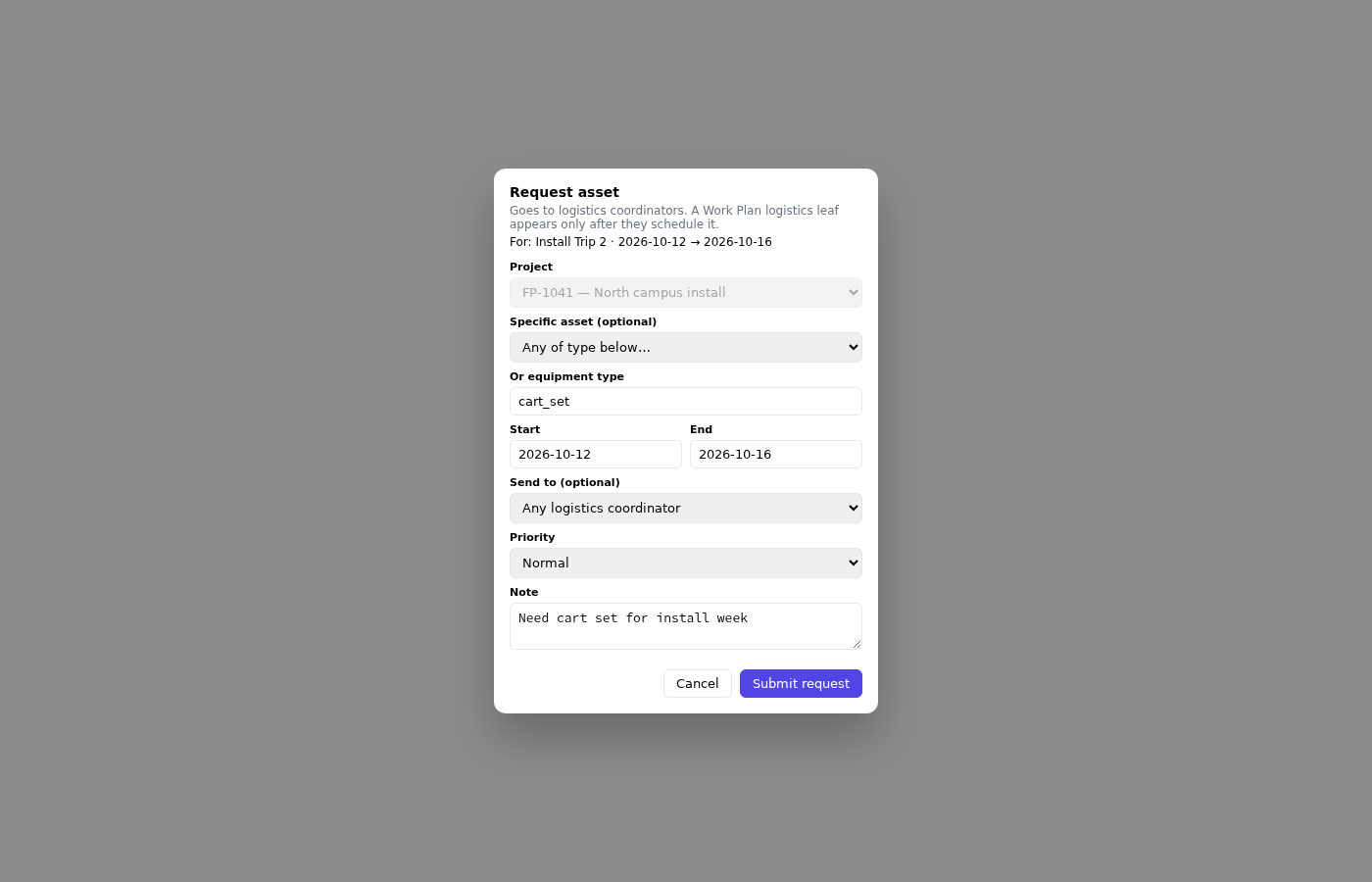
The line under the title names the row and its dates. Submit request does not create a Work Plan logistics leaf yet.
What the form fills in
- For: the task or phase name, plus start and end copied from that row. You can still edit the dates.
- Project: locked when you came from Work Plan.
- Specific asset (optional) or Or equipment type (for example
truck,cart_set,kit). You need one of those two. - Send to (optional): a named coordinator, or leave Any logistics coordinator.
- Priority: Low, Normal, High, Urgent.
- Note.
Press Submit request. You should see “Asset request submitted.” That is all that happens on the Work Plan: no jump, no new row. The ask sits in the coordinator inbox as pending.
If you are not on a project Work Plan, right-click tells you to open one first.
Coordinator inbox
On Time & Availability → Logistics, people who can schedule see Asset requests (N pending) when something is waiting. Each row shows project, task or phase, asset or type, dates, who asked, and priority.
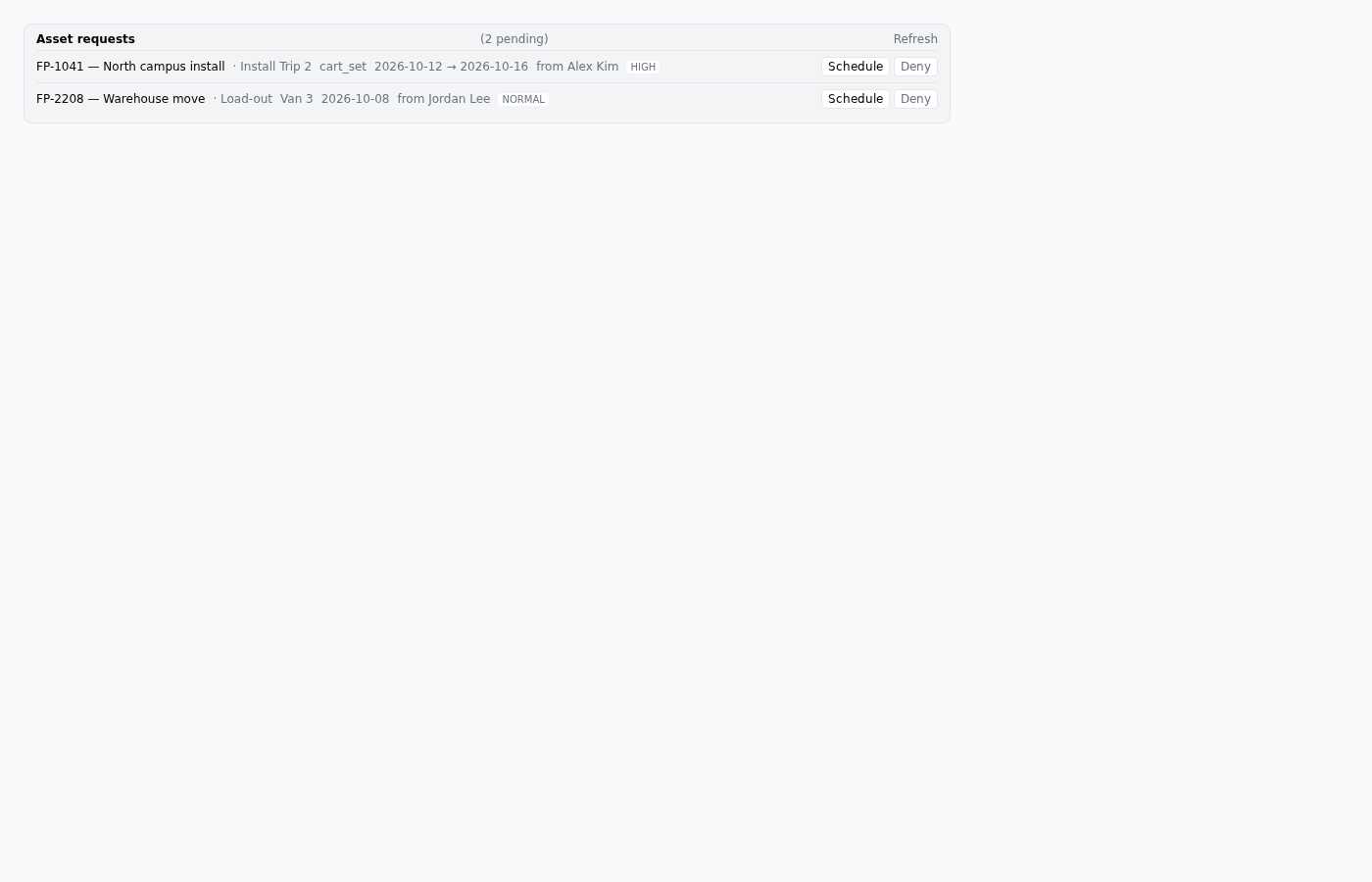
Schedule
- Press Schedule.
- Pick a real Fleet asset (required even if the ask was only a type). The requested type stays as a hint.
- Adjust start / end / note if needed.
- Press Schedule.
That creates the Logistics chip and a Work Plan leaf named Logistics · plus the asset name (with the project code in parentheses when the job has one). Estimated hours on that leaf stay 0. It is not Truck Pack and not an install trip.
Deny
Press Deny. A browser prompt asks Reason for denying this asset request:. Cancel on the prompt leaves it pending. An empty reason is rejected. After a reason, the row leaves the inbox and no booking is created.
Example: PM asks, coordinator places the truck
Right-click Install Trip 2 (12–16 Oct). Choose Request asset…. Pick Van 3 or type van. Submit request.
The coordinator opens Logistics the same morning, presses Schedule, chooses Van 3, presses Schedule. Work Plan now shows Logistics · Van 3 under that trip.
If Van 3 is in Maintenance, they press Deny and type “Van 3 in the shop; use Van 6 and re-ask.”