Logistics: fleet, schedule, and asset requests
Logistics: fleet, schedule, and asset requests
Keep trucks, trailers, cart sets, and kits in Fleet. Book them on the Logistics calendar. Ask for one from the Work Plan when a job needs it.
This page is the map. The other articles are the how-to. This matches Flightplan v2026.10.4.2 and later.
Who does what
| Person | What they do | Where |
|---|---|---|
| Project manager on a job | Ask for a truck, cart set, or kit for a task or phase. Dates come from that row. | Work Plan sidebar or right-click → Request asset |
| Warehouse / fleet owner | Add and edit assets, photos, type fields, and dated notes. | Fleet (the heading on that screen is Equipment) |
| Logistics coordinator | See pending asks, press Schedule or Deny, book assets on the calendar. | Time & Availability → Logistics |
| Org admin | Grant coordinators, seed or import the catalog, connect Samsara. | Ground Control. Not on the Logistics toolbar. |
Owners, admins, and managers already schedule logistics. A member gets the same inbox when an admin adds them under Ground Control → Logistics coordinators (the grant is named logistics:schedule).
Submitting a request uses the same project-request permission as other asks on a job. If Request asset does nothing useful, ask an admin to check that you can create requests.
Open each screen
Logistics calendar. Open Time & Availability in the sidebar. Choose the Logistics tab. It sits next to Timesheets, Availability, and Install Schedule. On a narrow window the tab shortens to Fleet.
Fleet catalog. There is no Fleet row in the main sidebar. From an empty Logistics screen, press Open Fleet. Or search Equipment in the command palette (Help → Keyboard shortcuts). The breadcrumb says Fleet. The heading says Equipment.
Samsara and bulk setup. Ground Control → Integrations. Use Fleet tracking for Samsara. Use Logistics setup to seed, import a sheet, or import from Samsara. Org admins only.
Faster later: F then S opens Time & Availability. F then E opens Fleet.
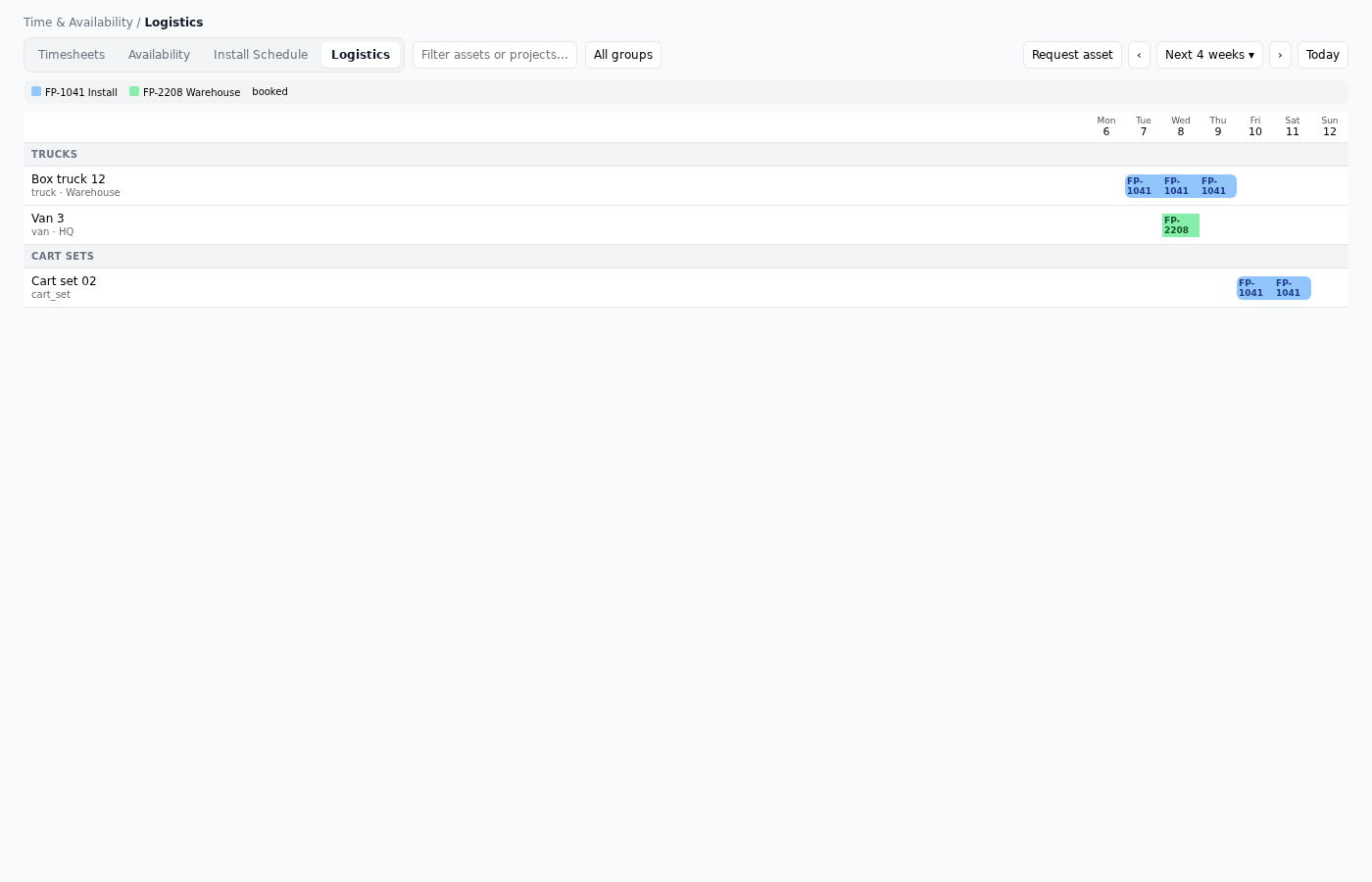
Time & Availability → Logistics. Seed, Import, and Sync are not on this toolbar.
The loop
- An admin seeds or imports Fleet, or you add a van by hand.
- On a Work Plan task, press Request asset. Start and end fill from that row. The form does not jump you to another project. A pending request is not a Work Plan leaf yet.
- A coordinator opens Logistics, sees Asset requests, and presses Schedule (pick a real asset) or Deny (a reason is required).
- Schedule creates the booking chip on Logistics and a Work Plan leaf named Logistics · … on that project. Deny does not.
Example: cart set for an install week
Open the Install phase on Work Plan. Press Request asset. Under Or equipment type, type cart_set. Submit. Dates already match the phase.
A logistics coordinator sees it on Logistics, picks Cart set 02, and presses Schedule. The grid shows a chip across those days. The Work Plan grows a Logistics · Cart set 02 leaf.
Warehouse later opens that asset on Fleet and presses Save note: “Wheel lock missing — replaced 4 Oct.”
What is not on Logistics
- Seed, Import schedule sheet, and Import Fleet from Samsara live under Ground Control → Logistics setup, not on the schedule toolbar.
- Sync locations & details lives on the Samsara card under Fleet tracking.
- Bookings are yes/no date spans. They do not consume person-hours. They are not Truck Pack and not an install trip.
Known limits
- Samsara asset photos often fail to load (HTTP 403). Upload a Fleet photo yourself with Add photo.
- There is no picker to link a Samsara vehicle to a Fleet row by hand. Sync matches on name. Until names match, location sync can report 0 linked of N.
- Deny still uses the browser prompt for the reason.