Fleet catalog
Fleet catalog
Fleet is the list of assets you can book: vehicles, trucks, vans, trailers, cart sets, kits, tools, machinery, freight lanes, and other. On that screen the heading is Equipment. Buttons say Add Equipment and Edit Equipment.
There is no Fleet row in the main sidebar. Open it with Open Fleet on an empty Logistics screen, or search Equipment in the command palette. Keyboard later: F then E.
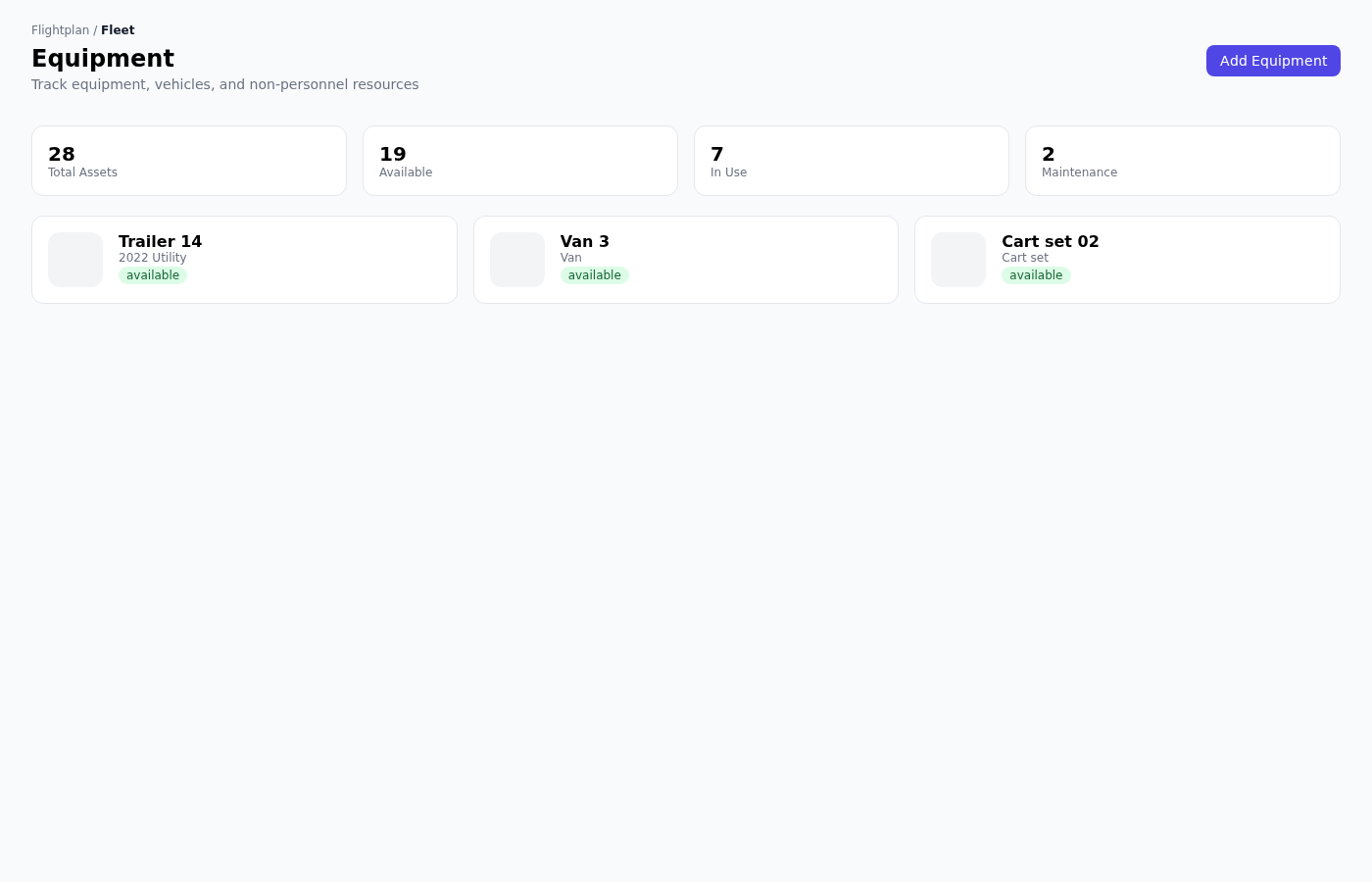
Cards summarize Total Assets, Available, In Use, and Maintenance. Click a card to edit that asset.
Add, edit, delete
- Press Add Equipment (or Add First Equipment when the catalog is empty).
- Fill Equipment Name (required) and Type.
- Type-specific fields appear under a heading such as Vehicle details or Kit contents. Changing Type swaps that block.
- Set Location, Status (Available, In Use, Maintenance, Retired), and optional Daily Rate.
- Optional: Assigned project and Assigned person.
- Press Add Equipment (new) or Update (edit). Delete is on the footer when you are editing an existing row. Cancel closes without saving.
Click any catalog card to reopen Edit Equipment.
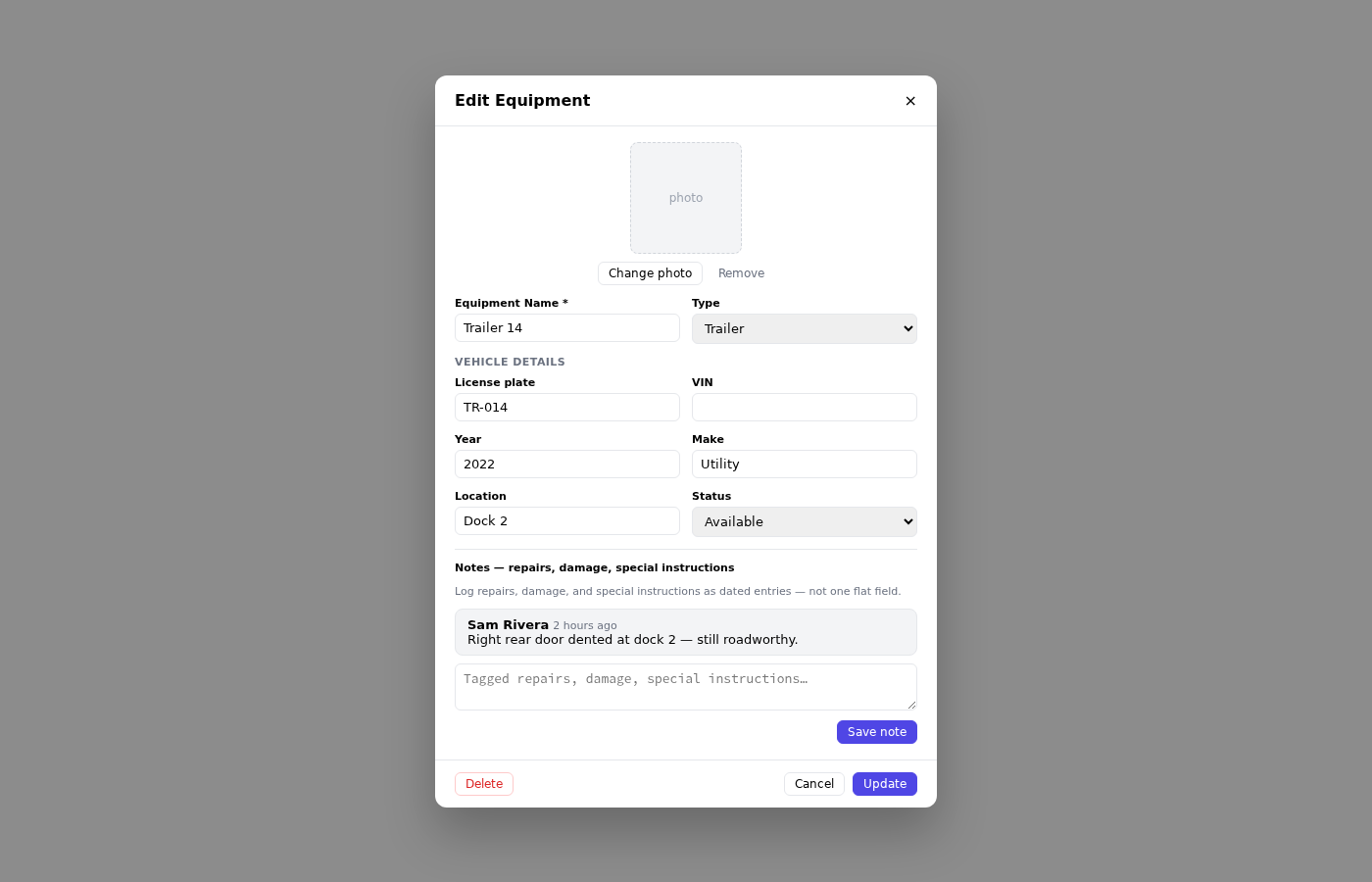
Add photo / Change photo, type fields, then dated notes with Save note.
Type-specific fields
The Type menu: Vehicle, Truck, Van, Trailer, Cart set, Kit, Test kit, Tool, Specialty, Machinery, Freight lane, Other.
| Types | Heading you see | Fields |
|---|---|---|
| Vehicle, Truck, Van, Trailer | Vehicle details | License plate, VIN, Year, Make, Model, Color |
| Kit, Test kit | Kit contents | Asset tag, Case / Pelican / bin, Included items |
| Cart set | Cart set details | Asset tag, Cart count, What's on the set |
| Tool, Specialty | Tool details | Asset tag, Model, Included items / bits |
| Machinery | Machinery details | Asset tag, Make, Model |
| Freight lane | Freight lane | Lane code, Lane description |
| Other | Asset details | Asset tag |
Samsara import can fill plate, make, model, year, VIN, tags, and a photo URL when that service sends one. You can still type over any field and save.
Photos
- On a new asset, pick a file now; it uploads after you save. Or save first, then Add photo.
- On an existing asset: Add photo or Change photo. JPEG, PNG, GIF, or WebP. Remove clears the picture.
- The catalog card shows the same picture (or a type icon if there is none).
- A Samsara picture URL, if one was stored, shows the same way. If those pictures fail to load, upload your own. See Samsara.
Journal notes
Notes are dated entries, like project notes. They are not one box for the whole history.
- Placeholder text follows the type (repairs and damage on a truck; missing pieces on a kit).
- Type in the box and press Save note. Each entry shows the author and a relative time. The author can Edit or Delete their own.
- If this asset used to have a flat notes field (from an older import), that text stays under Prior notes (from import / earlier field). New work goes in the journal.
- You must save a new asset before the journal is available.
Example: log trailer damage
Open Fleet. Click Trailer 14. Press Change photo for the new door shot. Type “Right rear door dented at dock 2 — still roadworthy.” Press Save note. Press Update if you also changed status to Maintenance.
Coordinators see the status on Logistics. They do not have to open Fleet to know it is off the board.
Bulk setup
Org admins seed a starter catalog, import a schedule workbook, or import live Samsara assets from Ground Control → Logistics setup. Those buttons are not on Fleet itself. See Samsara fleet tracking.