Logistics Schedule
Logistics Schedule
Logistics is the calendar of which asset is on which project on which days. Open Time & Availability, then the Logistics tab. It sits next to Install Schedule (same strip as Timesheets, Availability, and Itinerary when travel is on).
Bookings are a date span: yes or no. They do not take person-hours. On a narrow window the tab label is Fleet.
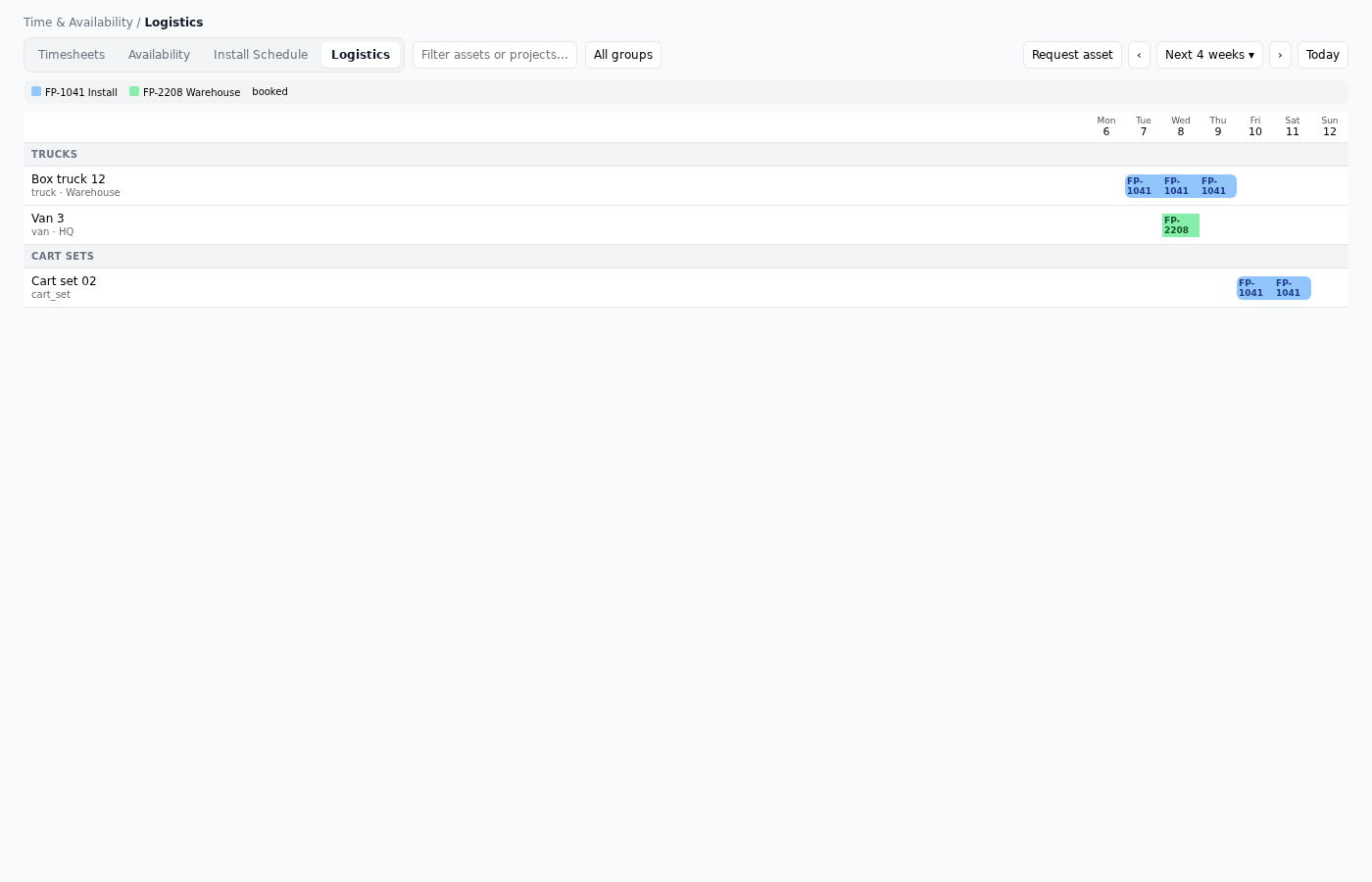
Filter, group, Request asset, Next 4 weeks / month, Today. Click a chip for the booking detail.
Toolbar
- Search: Filter assets or projects…
- Group menu (default All groups). Click a group name to include or exclude it. The choice is remembered.
- Request asset — same form as Work Plan.
- Window: back / forward arrows, a range menu that starts at Next 4 weeks and also lists calendar months, and Today.
Not on this toolbar: Seed, Import schedule sheet, Import Fleet from Samsara, Sync locations & details. Those are admin tools in Ground Control.
The grid
Rows are assets, grouped by type. Each day is a cell. A booking is a colored chip that spans its dates. The legend under the toolbar maps colors to projects and statuses.
Click an empty cell to book that asset onto a project for a span. Click a chip to open the detail: project, dates, status, note, and (when present) carrier or driver. From detail: Close, or Remove then Confirm remove. Remove is in the modal, not a browser confirm.
Hover a chip for a short tip. An unexpected-location mark (from Samsara geofence events, when linked) can sit on the row. It is not a booking.
Empty catalog
If there are no logistics assets yet, you see No logistics assets yet. Add them under Fleet, or ask an org admin to seed or import from Ground Control → Integrations. Open Fleet takes you to the catalog.
Pending asks
People who can schedule logistics (owners, admins, managers, and members granted as Logistics coordinators) see an Asset requests (N pending) strip above the grid when something is waiting. Schedule and Deny are on each row. Details: Asset requests and approvals.
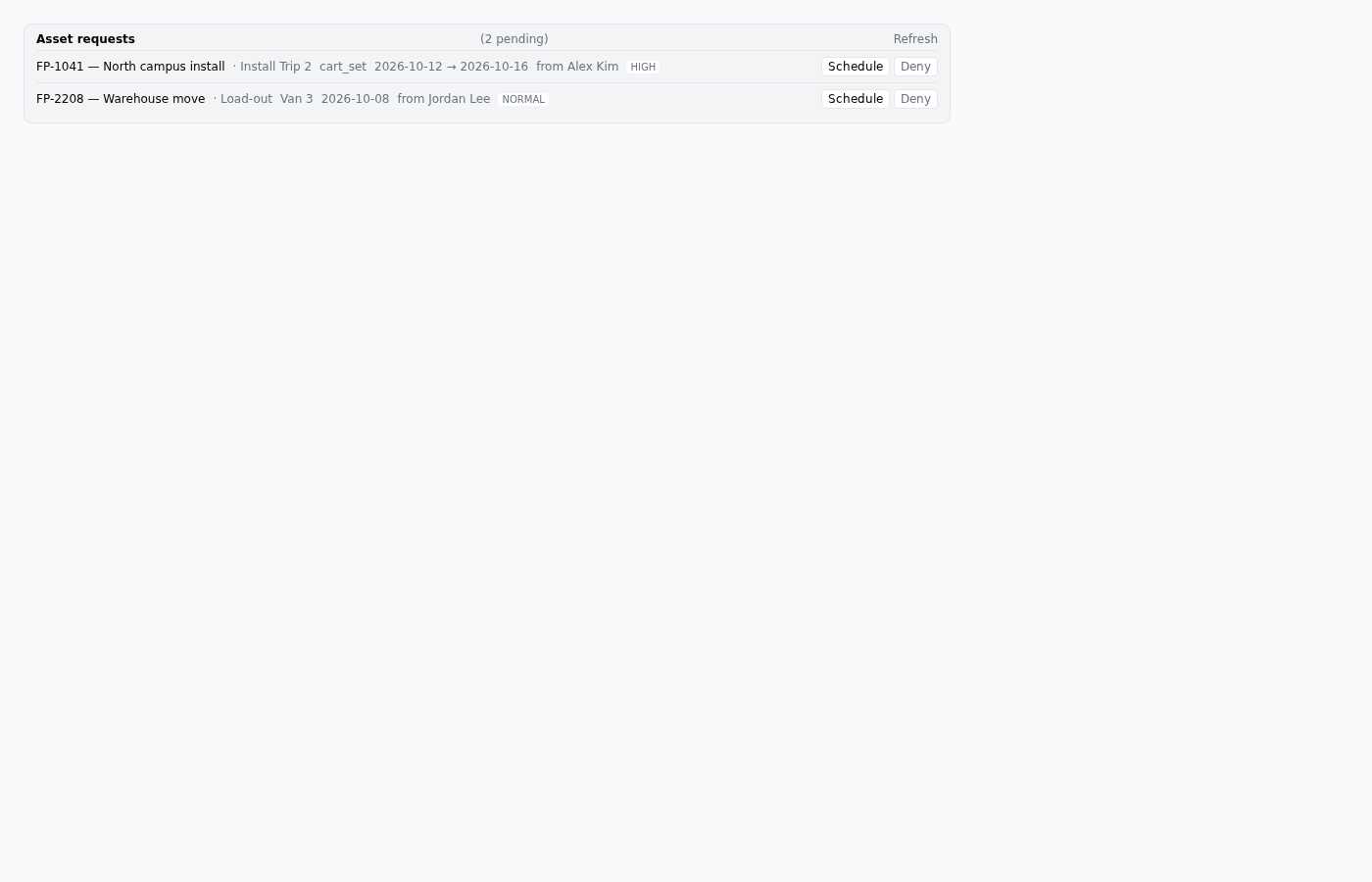
Coordinator inbox on Logistics. It only appears when you can schedule and something is pending.
Example: book a trailer for outbound freight
Set the window to the install month. Filter “trailer.” Click an empty cell on Trailer 14. Pick the project, set the end date, save. The chip runs across those days.
Clicking it later shows the project and dates. Remove takes it off the calendar and off the Work Plan leaf.