Samsara fleet tracking
Samsara fleet tracking
Samsara is optional GPS for Fleet. Connect it per organization in Ground Control → Integrations → Fleet tracking. Demo orgs cannot connect. The token is stored encrypted for this organization only.
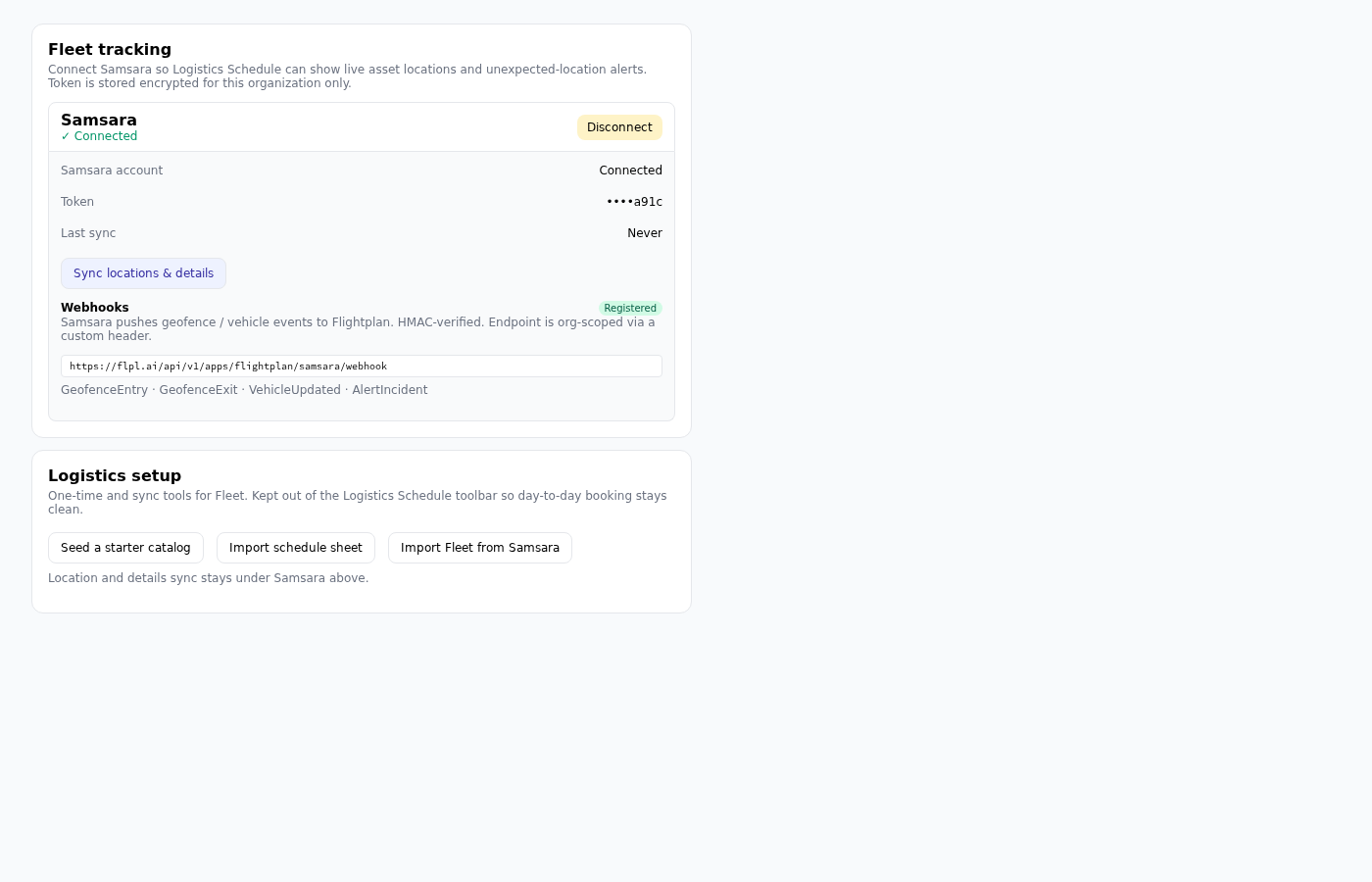
Fleet tracking (token, Sync locations & details, webhooks) and, for org admins, Logistics setup underneath.
Connect
- Open Ground Control → Integrations.
- Under Fleet tracking, paste a Samsara API token (it starts with
samsara_api_). - Press Save & connect. The button reads Validating… while it checks.
When connected you see the Samsara account name, last four of the token, last sync, Sync locations & details, Replace token, and Disconnect (confirm first: location sync will stop).
Webhook
Samsara can push geofence and vehicle events into Flightplan. Copy the URL shown on the card:
https://flpl.ai/api/v1/apps/flightplan/samsara/webhook
Flightplan checks each POST with HMAC so the payload was not altered. One URL serves every connected org.
- Status pill: Registered or Not registered.
- Event checkboxes you can subscribe (defaults when you first register): GeofenceEntry, GeofenceExit, VehicleUpdated, AlertIncident. Also offered: VehicleCreated, AlertObjectEvent, GatewayUnplugged, AddressCreated, AddressUpdated, AddressDeleted.
- Register webhook the first time. Later: Save subscriptions, Re-register (delete and recreate on Samsara), Remove webhook.
- Last event shows the type and time, or “None yet — use Test in Samsara dashboard.”
Geofence enter/exit is what Logistics uses first for unexpected-location marks. VehicleUpdated is useful when names and details drift. Other types are stored when subscribed; they do not all draw on the calendar.
Sync locations & details
On the Samsara card, not the Logistics toolbar. Press Sync locations & details.
That pull matches Samsara assets to Fleet rows by name (and by a stored Samsara id once linked). It can fill plate, make, model, year, VIN, tags, and location. There is no manual picker to choose “this Samsara vehicle is that Fleet row.”
If names do not match, sync reports 0 linked of however many Samsara sent (for example 0 of 28). Fix it by renaming Fleet rows to match Samsara, seeding the catalog so names exist, or using Import Fleet from Samsara (below) to create rows from live assets.
Admin: Logistics setup
Org admins see a second card, Logistics setup, under Fleet tracking. These tools stay off the Logistics Schedule toolbar so day-to-day booking stays clean.
- Seed a starter catalog (the button names a sample set). Adds trucks, freight lanes, carts, and kits that are not already in Fleet. It does not wipe existing rows.
- Import schedule sheet — upload an
.xlsxlogistics workbook. Creates project-tied bookings. - Import Fleet from Samsara — needs a connected token. Creates Fleet rows from live Samsara assets (plate, make, model, year, VIN, asset tag, photos when the API sends a URL).
Location and details sync stays on the Samsara card above. Logistics itself is for booking and fulfilling asks.
Photos: what is live vs not
| Live | Not live / limited |
|---|---|
| Token connect, disconnect, replace | Samsara Media Library / installer photo-uploads often return HTTP 403. Those pictures do not land on Fleet. |
| HMAC webhook at the URL above; geofence-first events | No manual Samsara ↔ Fleet picker |
| Sync locations & details (name match) | 0 linked until names match or you import/seed |
| Import Fleet from Samsara (admin) | Demo: Samsara is disabled |
| Your own Add photo on Edit Equipment | Do not expect Samsara profile pictures until 403 is gone |
| Plate, make, model, year, VIN, tags from GET /assets |
When a Samsara photo URL is missing or 403, Fleet shows the type icon until someone uploads a file on Edit Equipment.
Example: first-time hookup
Paste the org token. Press Save & connect. Register webhook (leave the geofence defaults). Copy the URL into Samsara if you register from their dashboard instead.
Seed the starter catalog so Fleet has names to match, or Import Fleet from Samsara to create the rows. Press Sync locations & details. If the toast is 0 linked, rename a Fleet van to the Samsara name and sync again. Upload dock photos on Fleet yourself until Samsara photos stop failing.